OAuth with Microsoft
Enable Microsoft Sign-In for InstaCRUD users using Azure Active Directory (Microsoft Entra ID).
Overview
Microsoft OAuth allows users to:
- Sign in with Microsoft personal accounts (Outlook, Hotmail)
- Sign in with Microsoft 365 work/school accounts
- Use existing Microsoft identity
Step 1: Register Application in Azure
- Go to Azure Portal
- Navigate to Microsoft Entra ID
- Select App registrations
- Click New registration
Registration Settings
- Name: Your application name
- Supported account types:
- Single tenant — Only your organization
- Multitenant — Any organization
- Multitenant + personal — Any org + personal Microsoft accounts (recommended for SaaS)
- Redirect URI: Select Web and enter:
http://localhost:8000/api/v1/signin/microsoft/callback
- Click Register
- Copy the Application (client) ID
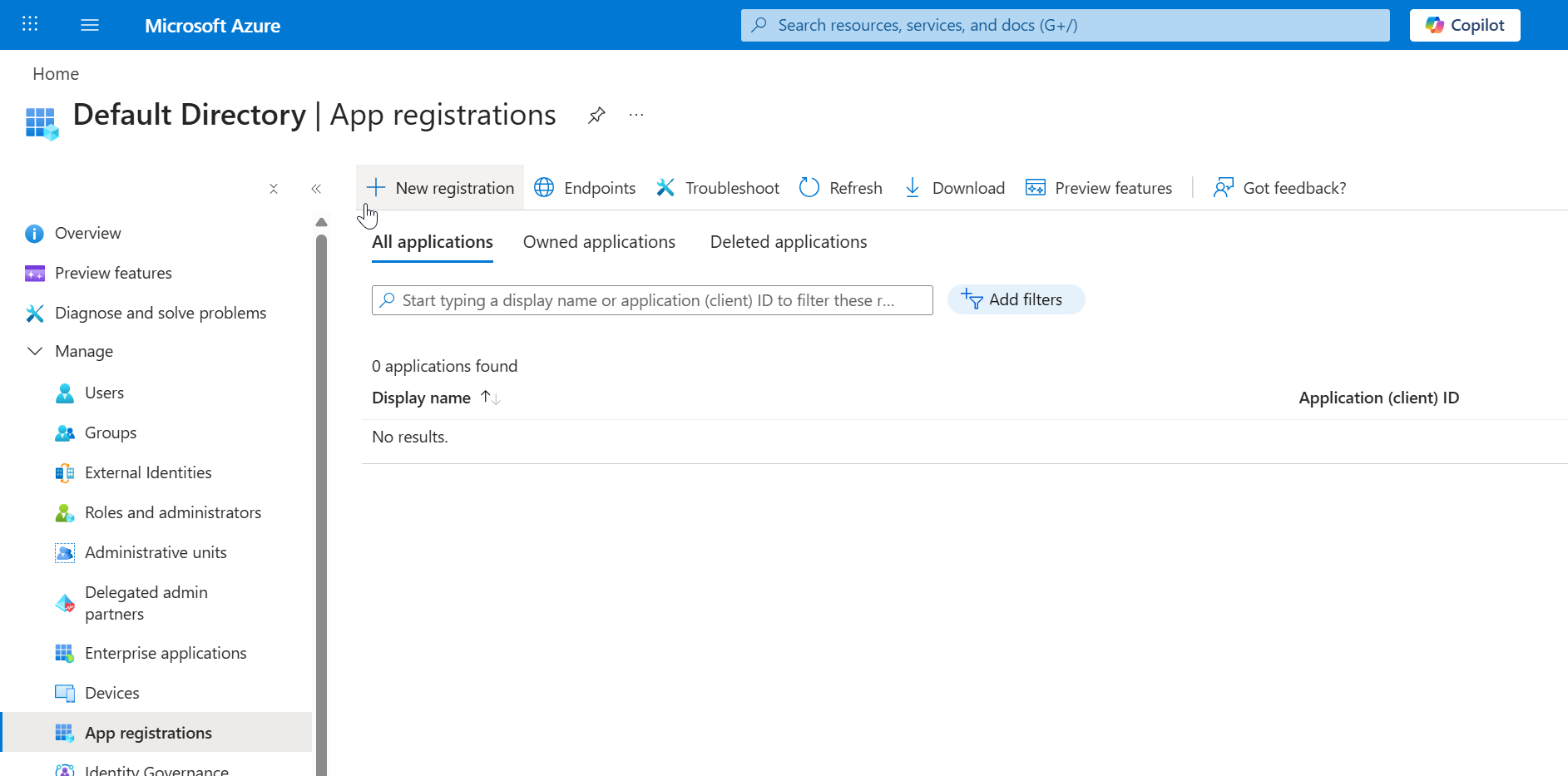 Creating a new application registration in Microsoft Entra ID.
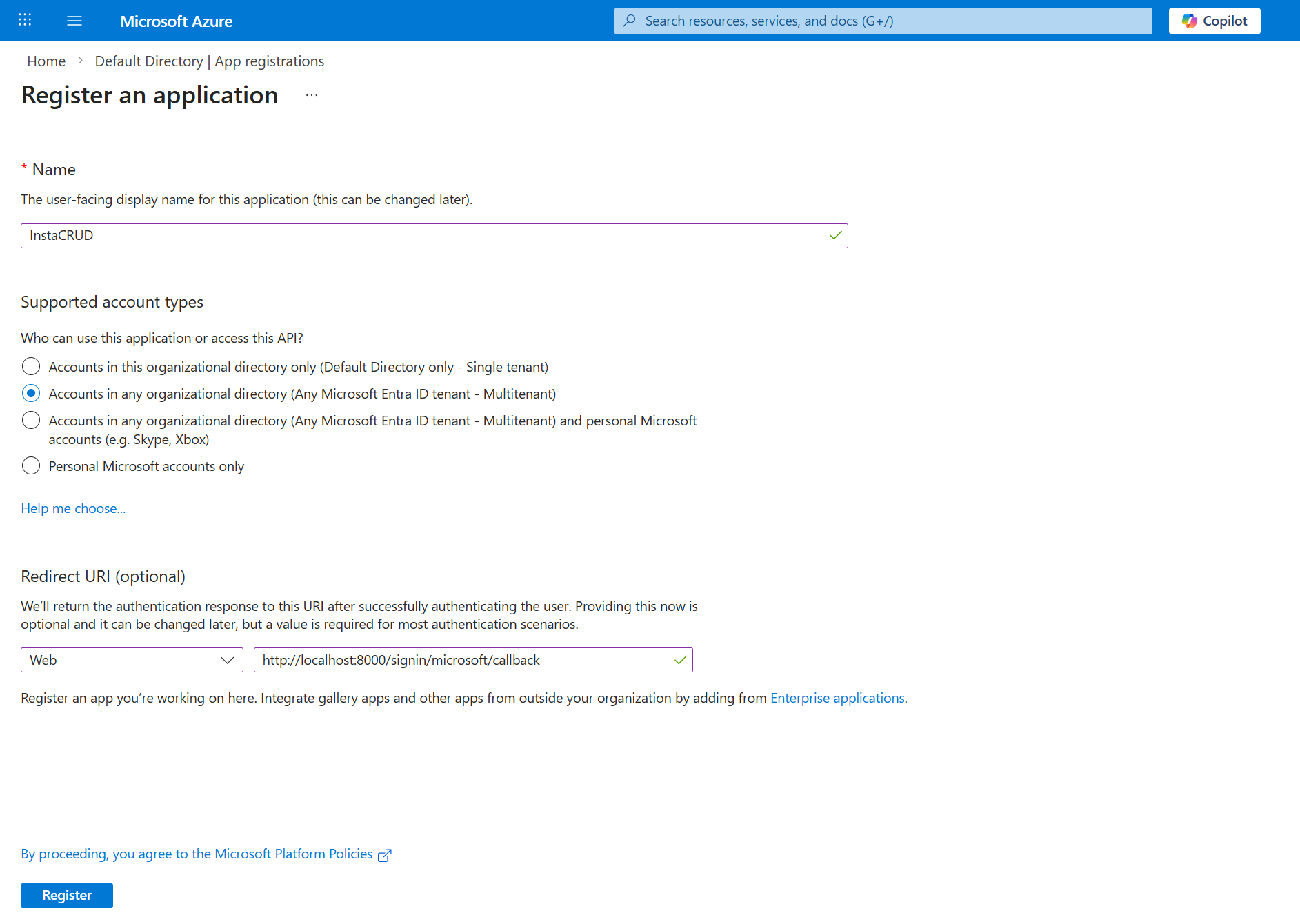 Configuring application registration settings including supported account types and redirect URI.
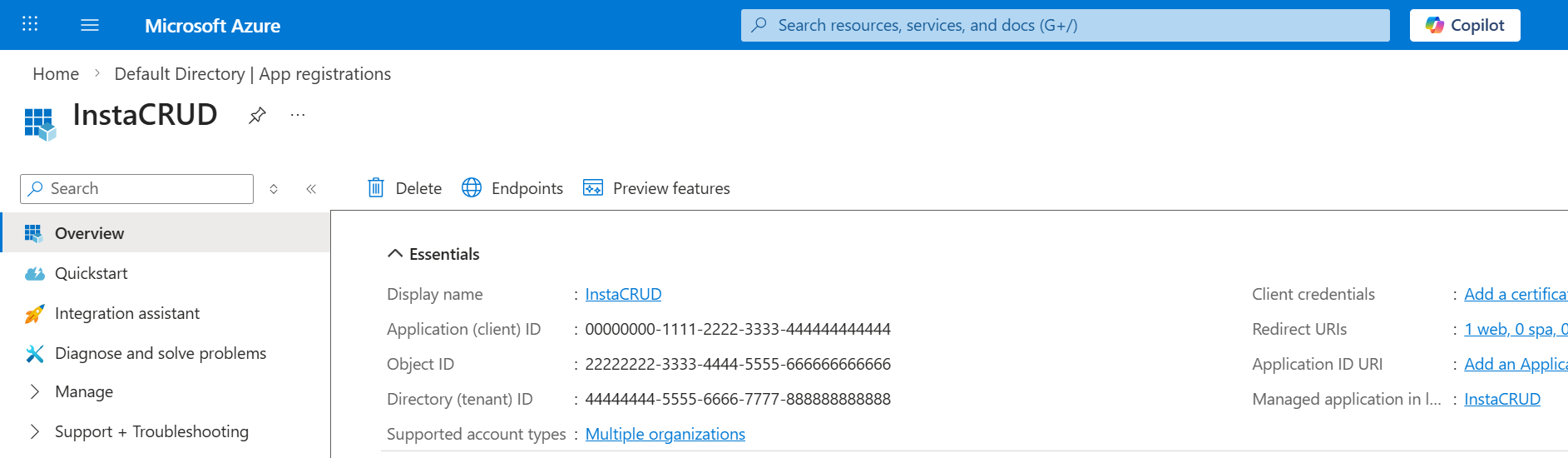 Application overview page. Copy the Application (client) ID for backend configuration.
Step 2: Create Client Secret
- In your app registration, go to Certificates & secrets
- Click New client secret
- Add a description (e.g., "InstaCRUD Backend")
- Select expiration (24 months recommended)
- Click Add
- Copy the secret value immediately
⚠️ The secret value will not be visible again after leaving or refresh the page.
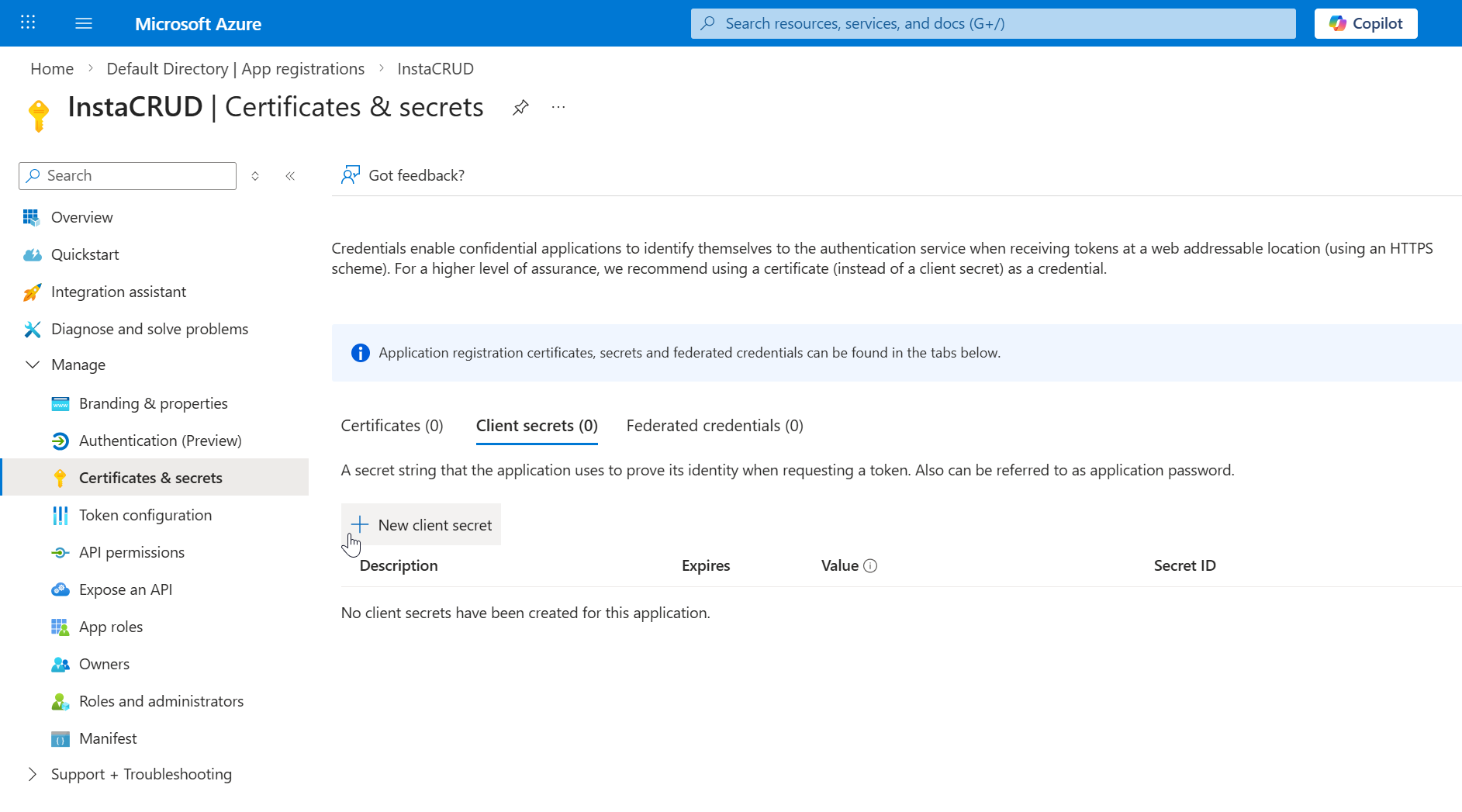 Navigate to the Certificates & secrets section inside your app registration.
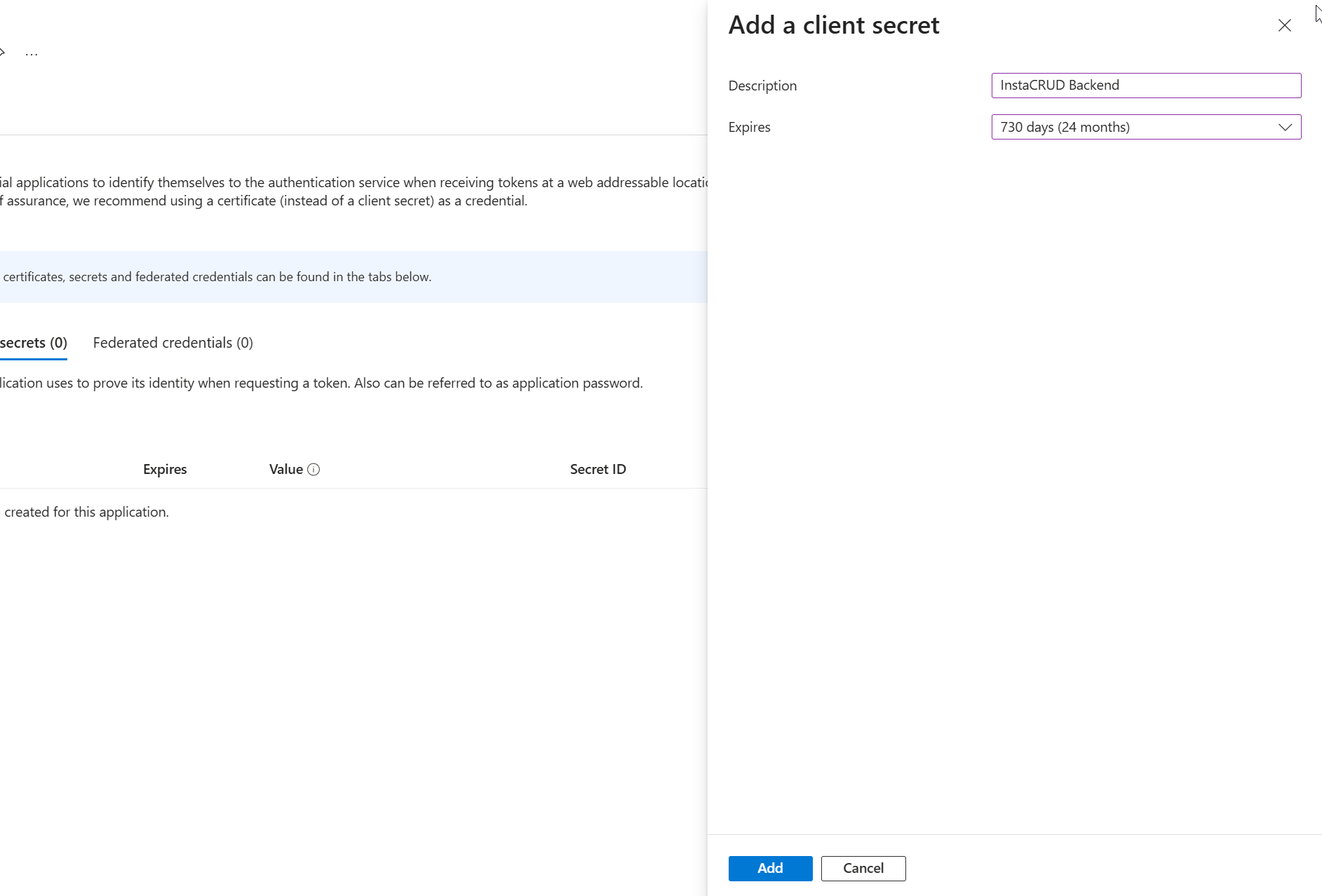 Creating a new client secret for InstaCRUD backend authentication.
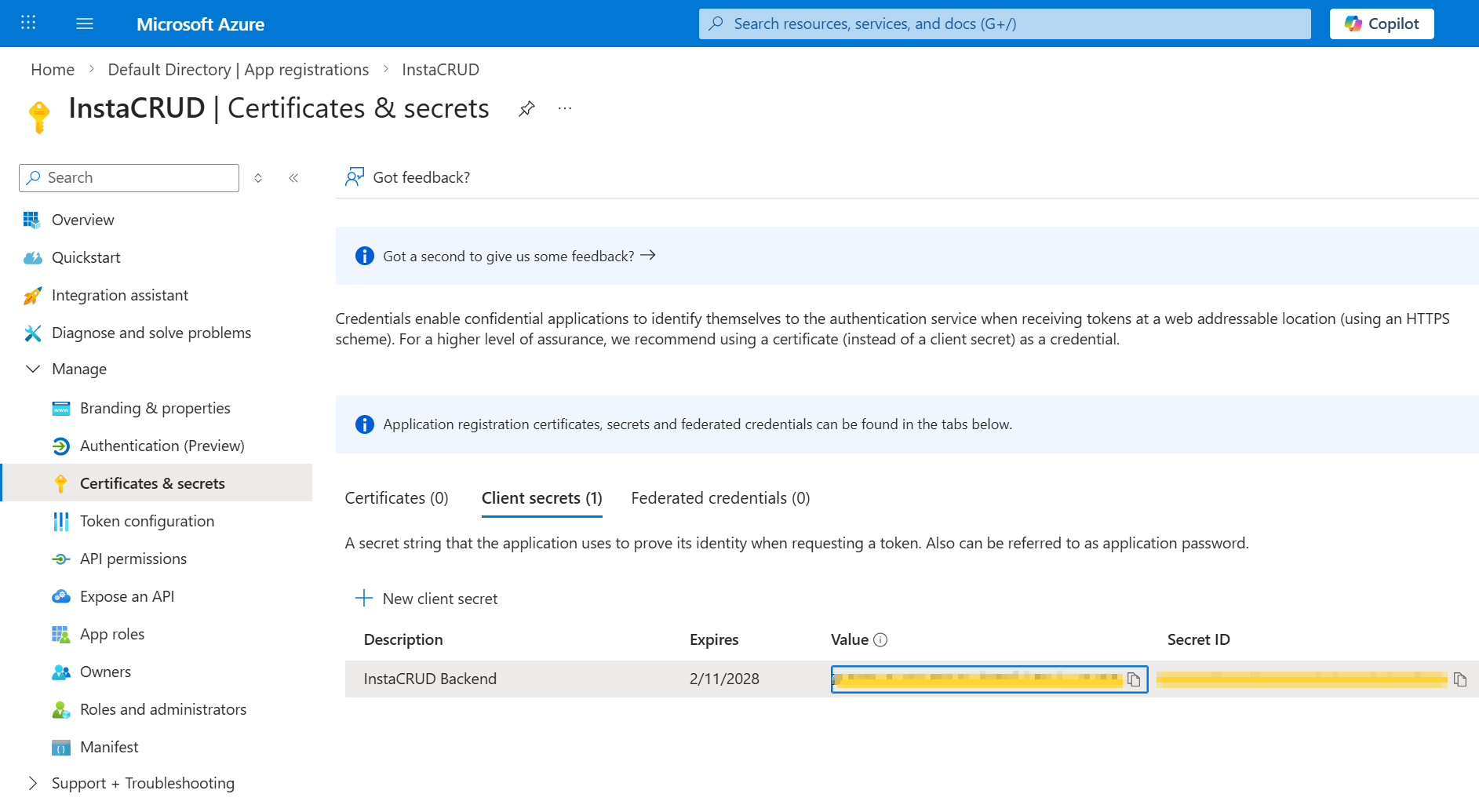 Copy the client secret value immediately. It will not be shown again.
Step 3: Configure API Permissions
- Go to API permissions
- Click Add a permission
- Select Microsoft Graph
- Choose Delegated permissions
- Add:
emailopenidprofileUser.Read
- Click Add permissions
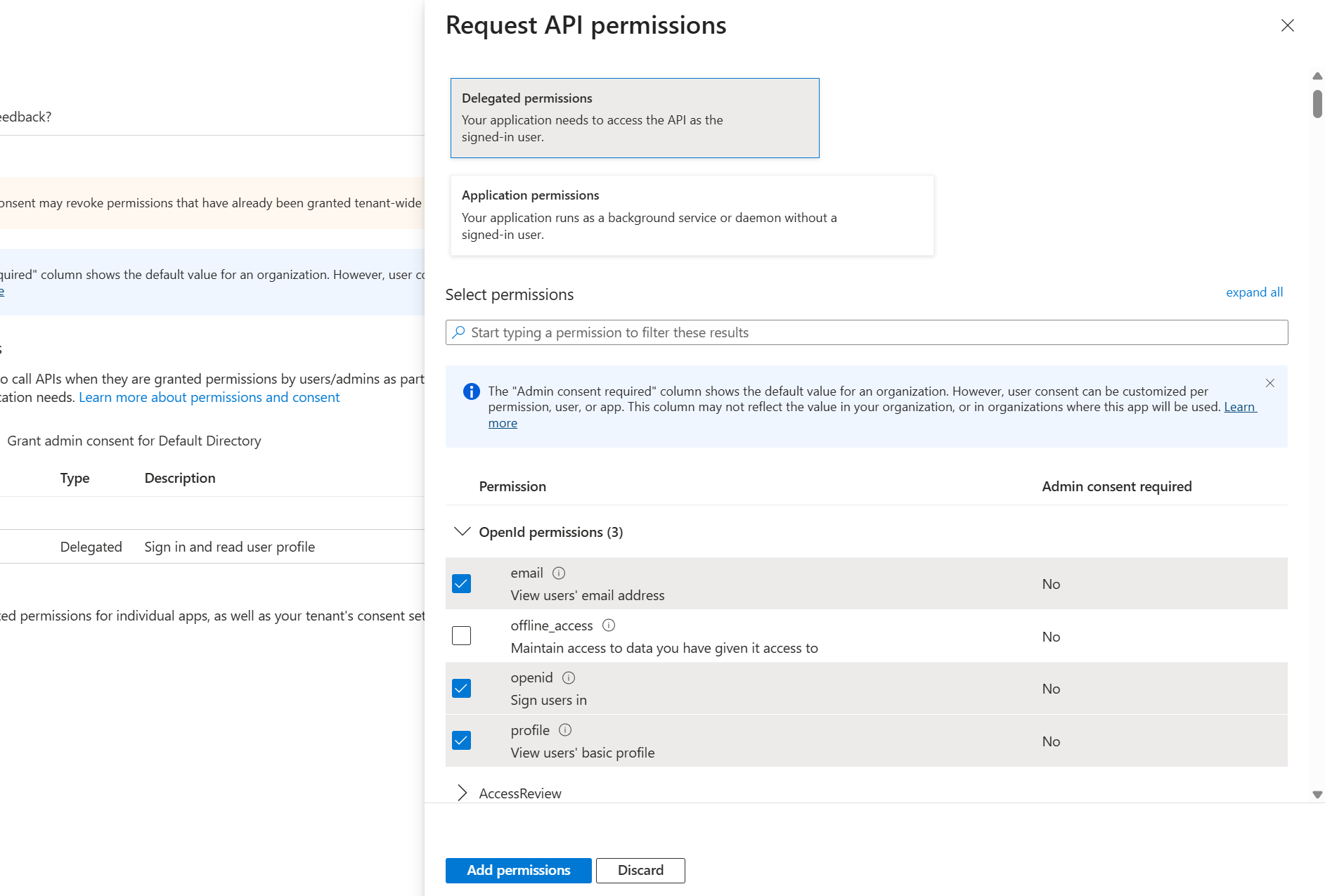 Adding Microsoft Graph delegated permissions required for authentication.
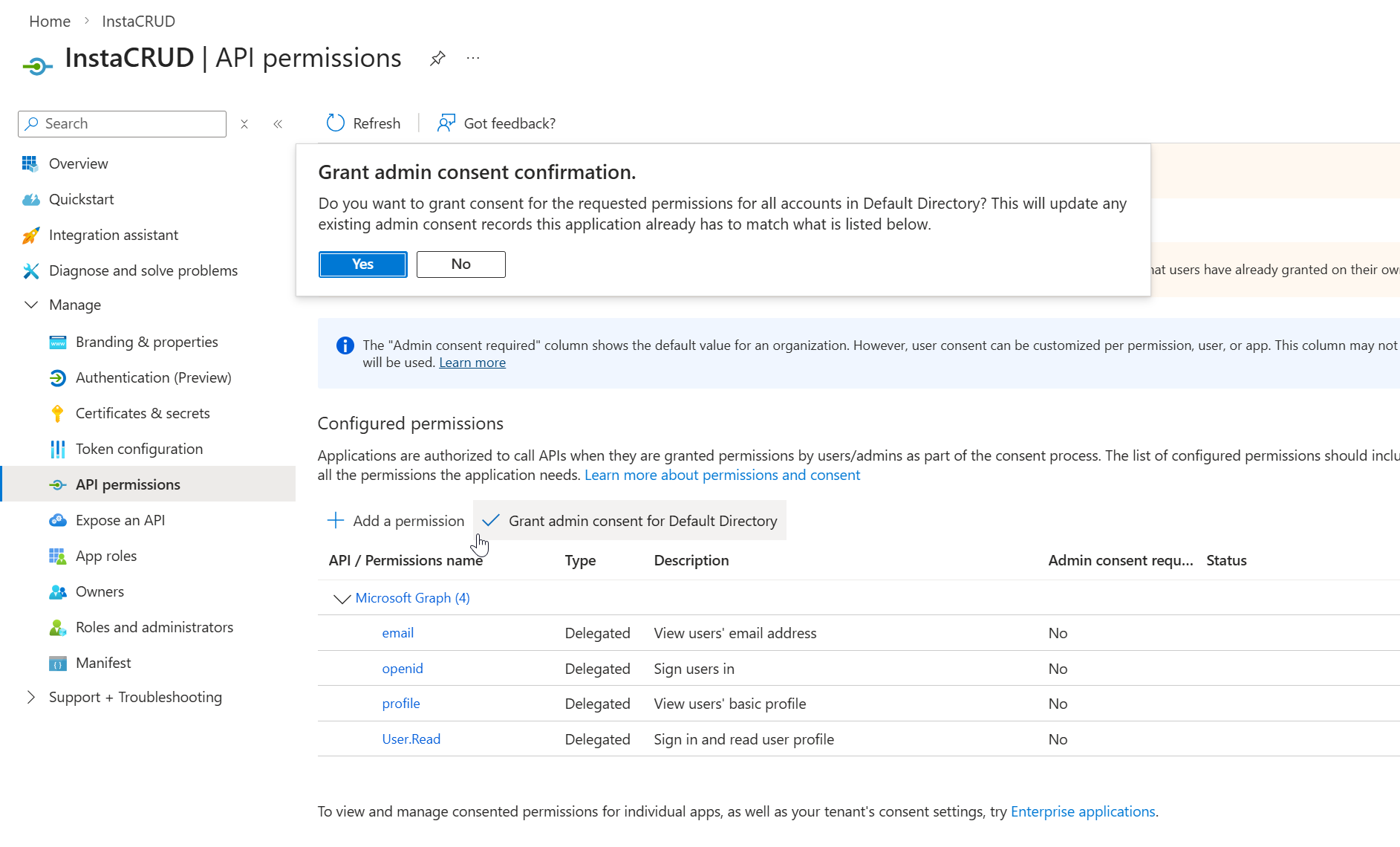 Granting admin consent to allow organization-wide access without user approval prompts.
Admin Consent (Optional)
For organization-wide access without user consent prompts:
- Click Grant admin consent for [Organization]
- Confirm the action
Step 4: Configure Redirect URIs
- Go to Authentication
- Under Web > Redirect URIs, add all environments:
http://localhost:8000/api/v1/signin/microsoft/callback
http://localhost:8000/api/v1/signup/microsoft/callback
https://your-domain.com/api/v1/signin/microsoft/callback
https://your-domain.com/api/v1/signup/microsoft/callback
-
Under Implicit grant and hybrid flows, enable:
- Access tokens
- ID tokens
-
Click Save
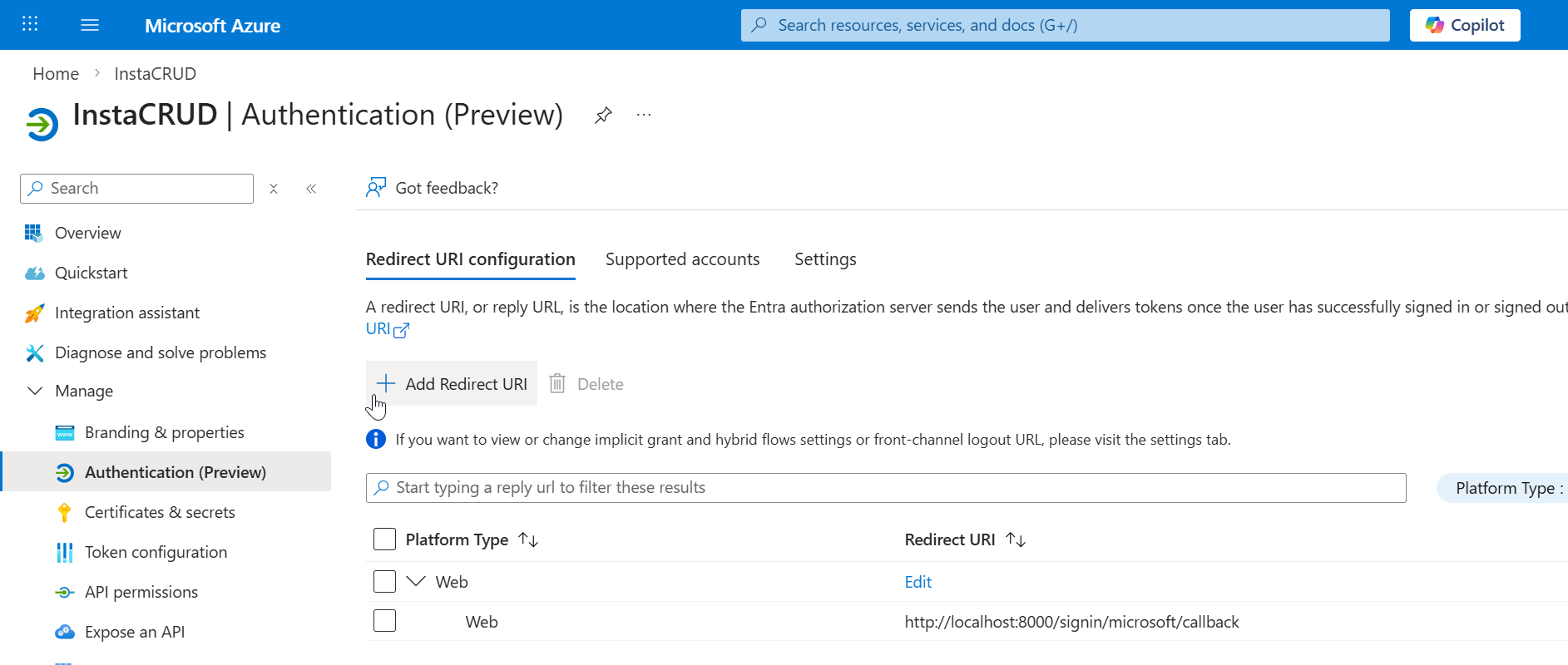 Authentication configuration page showing existing redirect URIs.
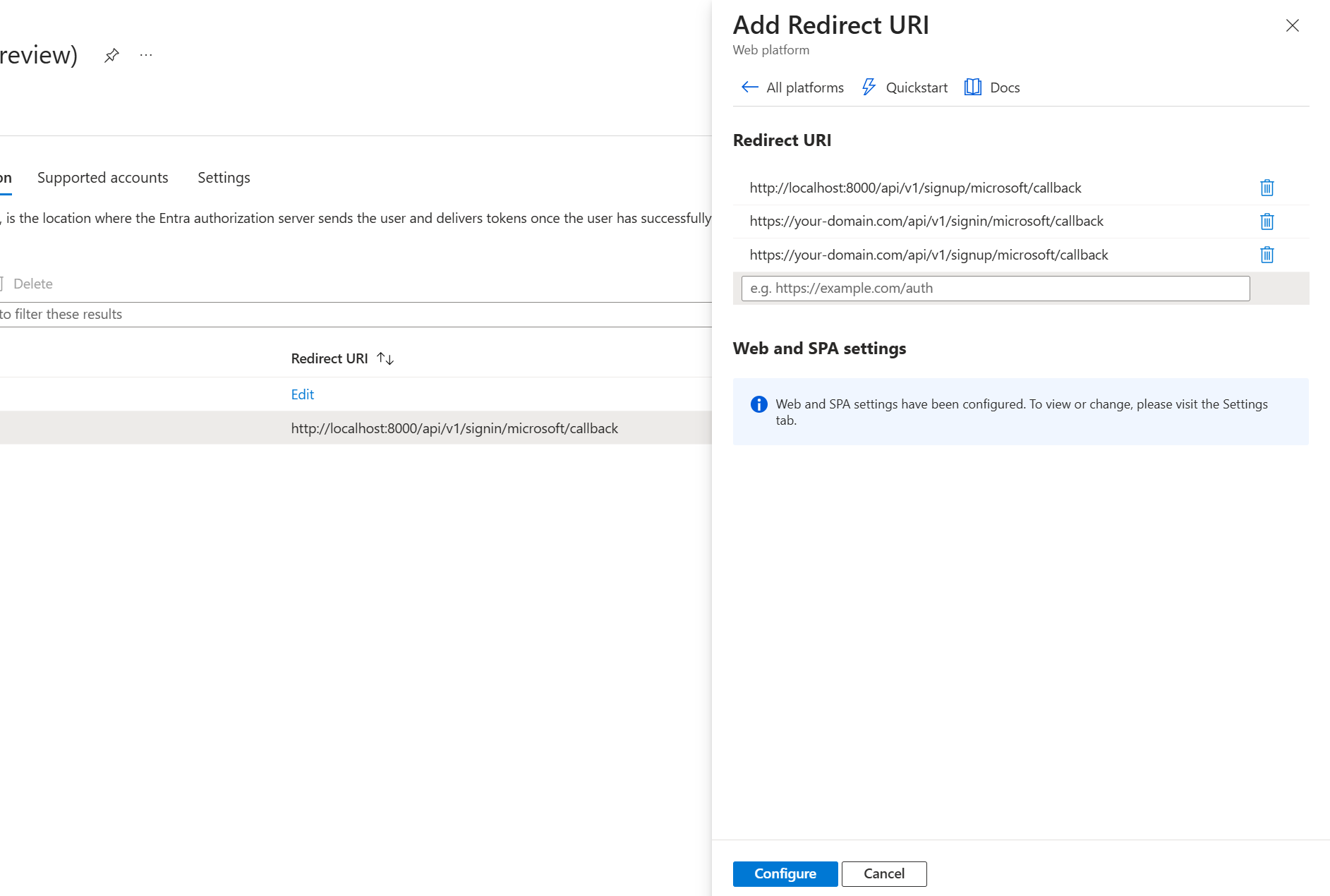 Adding redirect URIs for different environments.
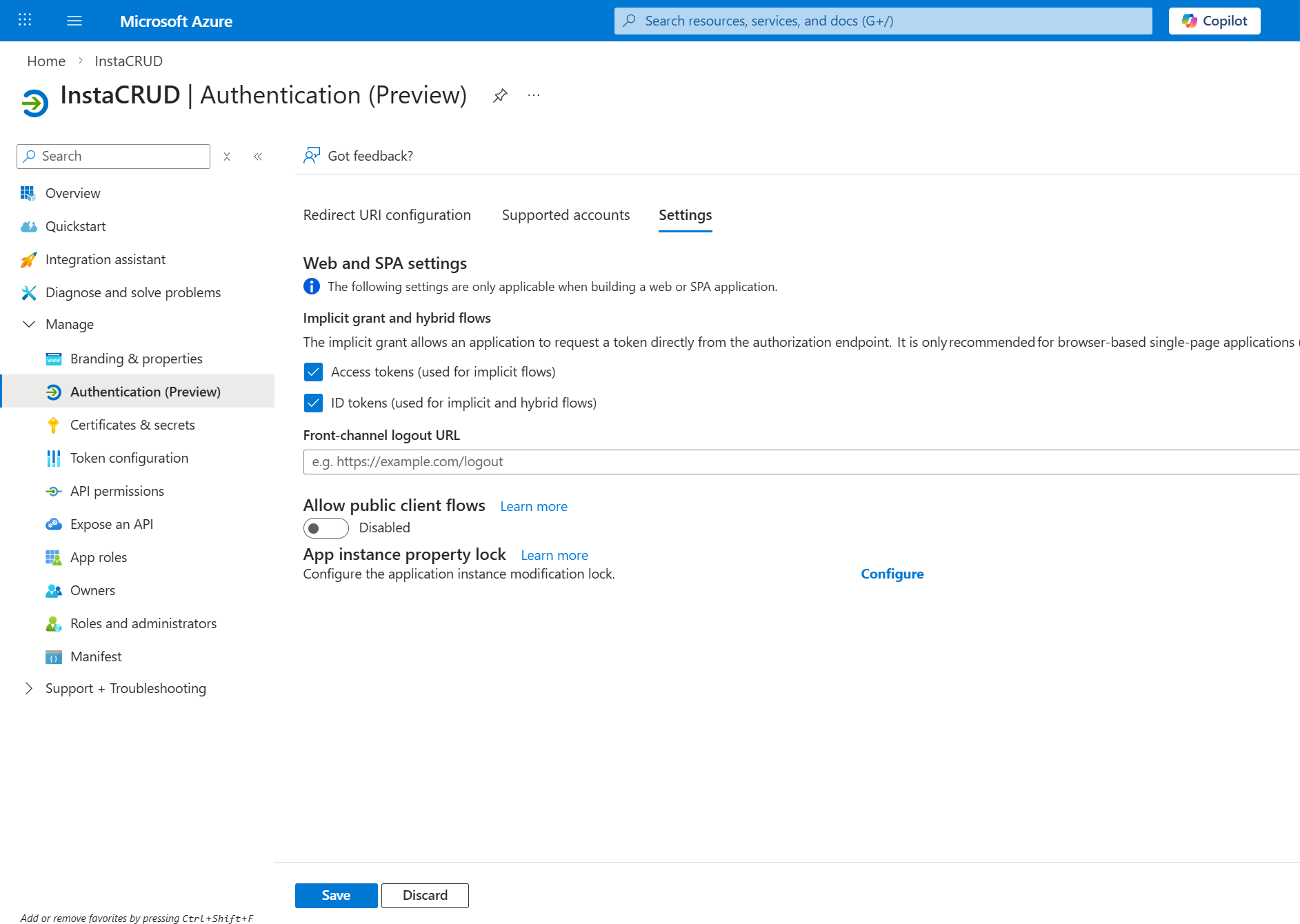 Enabling ID tokens and Access tokens under Implicit grant and hybrid flows.
Step 5: Configure InstaCRUD
Add credentials to your backend .env file:
# Microsoft OAuth
MS_CLIENT_ID=your-application-client-id
MS_CLIENT_SECRET=your-client-secret-value
MS_TENANT_ID=common
Tenant ID Options
| Value | Description |
|---|---|
common | Any Microsoft account (personal + work/school) |
organizations | Only work/school accounts |
consumers | Only personal Microsoft accounts |
{tenant-id} | Specific organization only |
Step 6: Verify Configuration
Restart the backend server. The OAuth endpoint should be available:
GET /api/v1/signin/microsoft
This redirects users to Microsoft's consent screen.
Environment-Specific Setup
Local Development
Redirect URIs:
http://localhost:8000/api/v1/signin/microsoft/callback
http://localhost:8000/api/v1/signup/microsoft/callback
ngrok Development
Redirect URIs:
https://your-backend.ngrok-free.app/api/v1/signin/microsoft/callback
https://your-backend.ngrok-free.app/api/v1/signup/microsoft/callback
Production
Redirect URIs:
https://api.your-domain.com/api/v1/signin/microsoft/callback
https://api.your-domain.com/api/v1/signup/microsoft/callback
Single-Tenant Configuration
For internal applications restricted to one organization:
- Set Supported account types to Single tenant
- Use your organization's tenant ID:
MS_TENANT_ID=your-tenant-id-guid
Find your tenant ID in:
Azure Portal → Microsoft Entra ID → Overview
Troubleshooting
"AADSTS50011: Reply URL Mismatch"
- Redirect URI must match exactly
- Check for trailing slashes
- Verify protocol (http vs https)
"AADSTS7000215: Invalid Client Secret"
- Client secret may have expired
- Create a new secret and update
.env - Ensure no extra whitespace
"AADSTS700016: Application Not Found"
- Verify
MS_CLIENT_IDis correct - Check the application exists in the correct tenant
"Consent Required" Loop
- Grant admin consent in Azure Portal
- Ensure required permissions are configured
Security Recommendations
- Rotate secrets regularly — Track expiration dates
- Use separate app registrations — One for development, one for production
- Limit permissions — Only request required scopes
- Monitor sign-ins — Review Entra ID sign-in logs
Summary
Microsoft OAuth configuration requires:
- Azure app registration with correct account type
- Client secret (keep secure, track expiration)
- API permissions for user profile access
- Redirect URIs for all environments
- Environment variables in InstaCRUD backend