Managing Projects
Projects represent work initiatives or engagements tied to specific clients. Each project belongs to exactly one client and can have multiple documents associated with it.
Projects List
Navigate to Projects from the sidebar to view all projects.
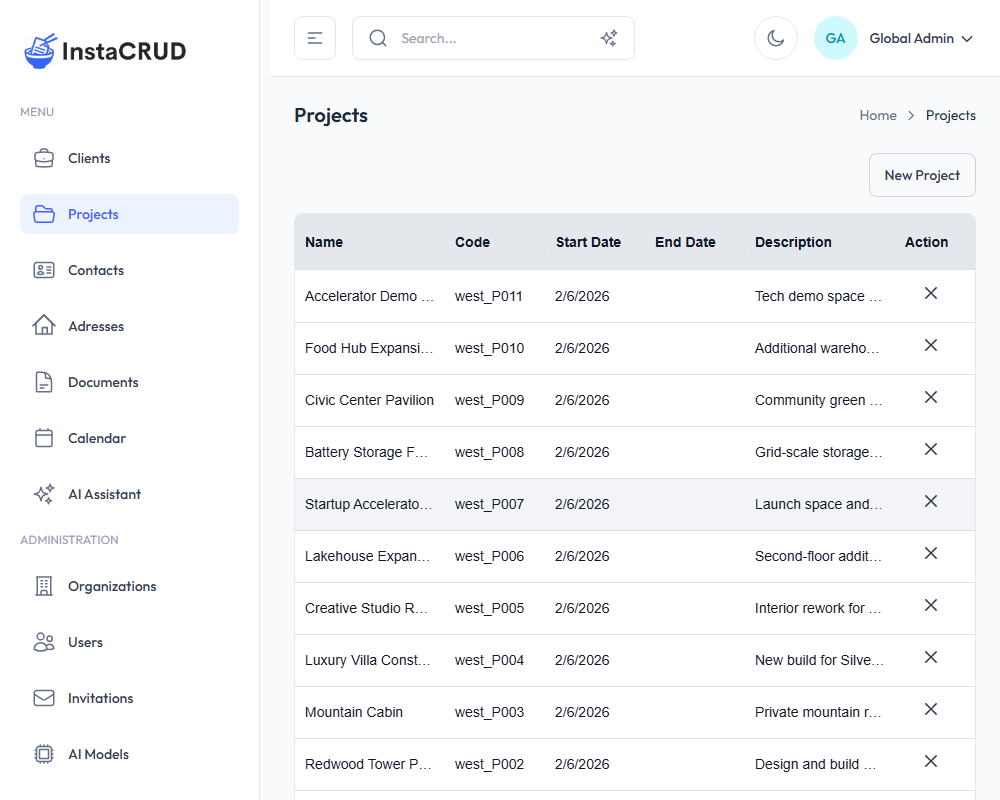
The list displays:
- Name - The project name (click to view details)
- Code - A unique project identifier
- Client - The associated client
- Start Date - When the project begins
- End Date - When the project is expected to end (if set)
- Actions - Edit and delete options
Creating a New Project
- Click the New Project button
- Fill in the project details:
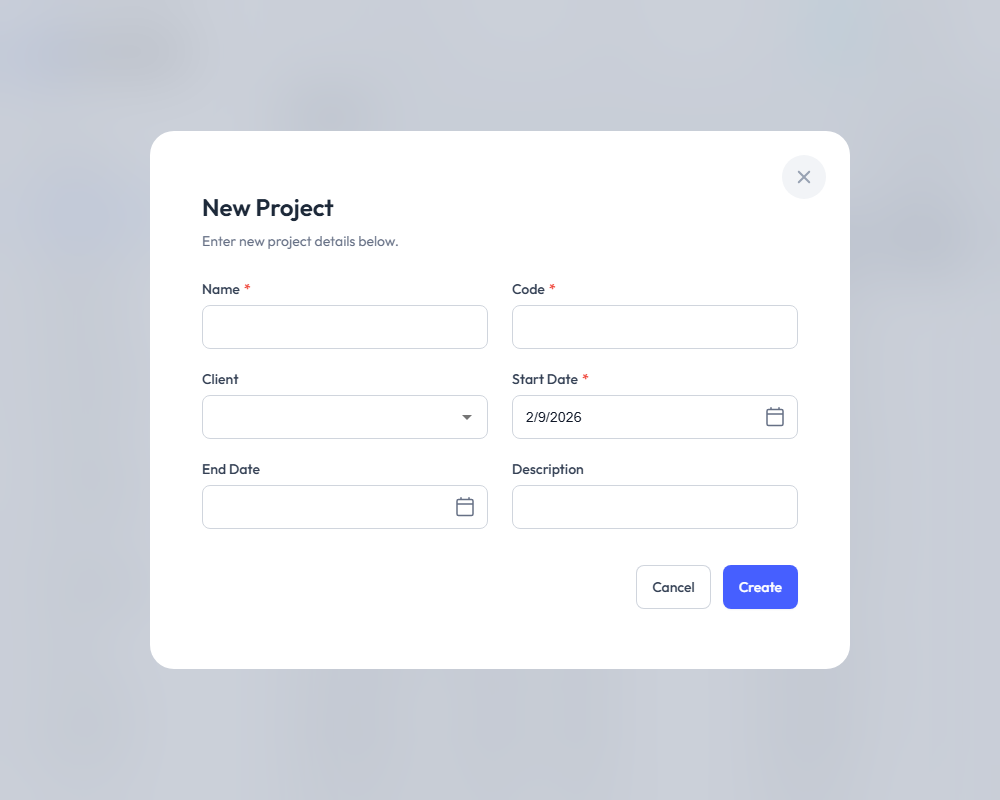
| Field | Required | Description |
|---|---|---|
| Name | Yes | The project's display name |
| Code | Yes | A unique identifier (e.g., "PROJ-2024-001") |
| Client | Yes | Select the client this project belongs to |
| Start Date | Yes | The project start date |
| End Date | No | The expected completion date |
| Description | No | Project scope, goals, or notes |
- Click Save to create the project
Project Detail View
Click on a project name to open the detail view.
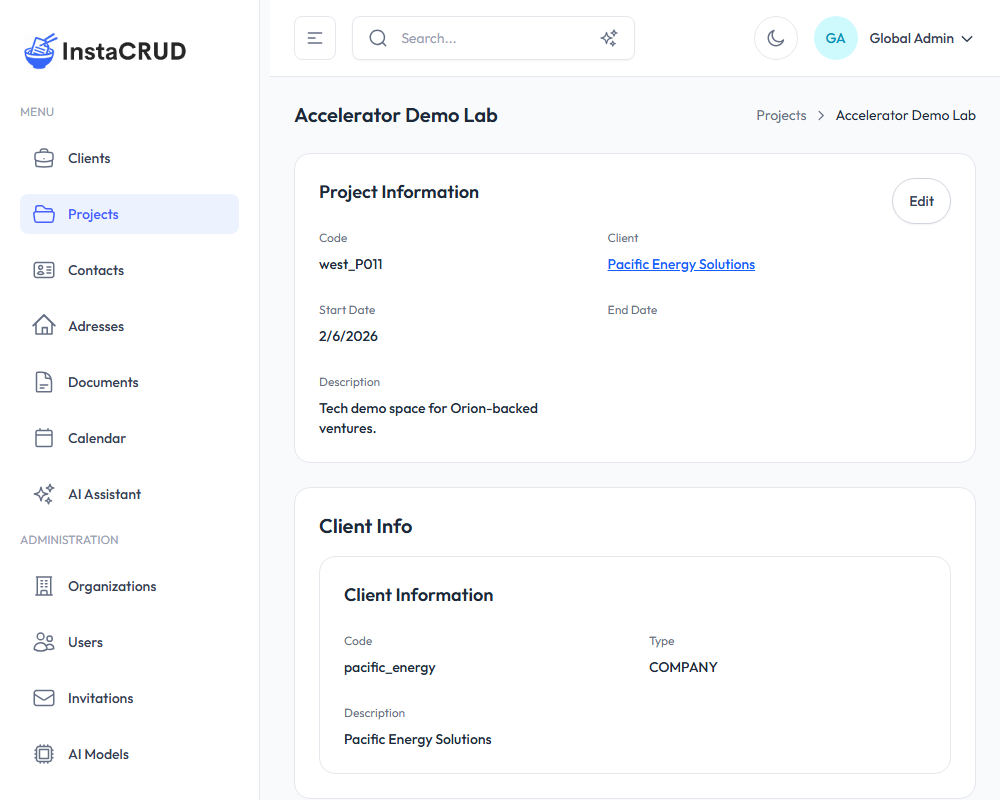
The detail view shows:
- Project Information - All project fields
- Client Link - Click to navigate to the associated client
- Associated Documents - Documents linked to this project
Editing Project Information
- Click the Edit button
- Modify the fields as needed
- Click Save to apply changes
Working with Project Dates
Start Date
- Required when creating a project
- Use the date picker to select the date
- Format: Displayed in your locale format
End Date
- Optional field
- Leave empty for ongoing projects
- Update when project scope becomes clearer
Changing the Project's Client
You can reassign a project to a different client:
- Open the project for editing
- Use the Client dropdown to select a new client
- Save the changes
note
Reassigning a project does not affect associated documents.
Project Documents
Projects can have multiple documents attached. From the project detail view:
- View the list of associated documents
- Click on a document to view its details
- Create new documents directly from this section
To create a document for this project:
- Navigate to Documents in the sidebar
- Create a new document
- Select this project in the Project field
Deleting a Project
- Navigate to the project detail view
- Click Delete
- Confirm the deletion
warning
Deleting a project may affect associated documents. Review related data before deleting.
Project Status Tracking
While InstaCRUD doesn't have a built-in status field, you can track project status by:
- Using descriptions - Add status notes to the description field
- Using dates - Projects with past end dates are effectively completed
- Creating documents - Use status update documents to track progress
Best Practices
- Use consistent code formats - Example: "CLIENT-YYYY-NNN" format
- Set realistic end dates - Update as the project progresses
- Link to the correct client - Verify the client before saving
- Document milestones - Create documents to track important project updates
- Keep descriptions current - Update project scope as it evolves