Contacts & Addresses
Contacts and Addresses are standalone entities that can be linked to multiple clients, enabling you to reuse information across your organization.
Contacts
Contacts represent individual people associated with your clients.
Contacts List
Navigate to Contacts from the sidebar to view all contacts.
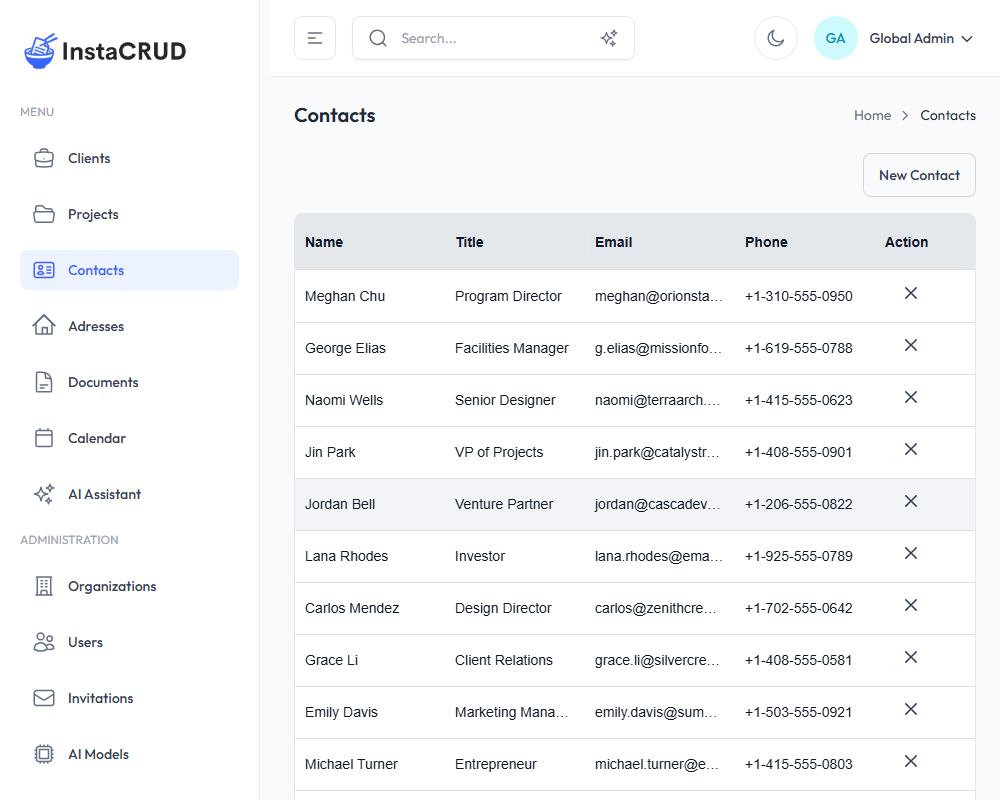
The list displays:
- Name - The contact's full name
- Title - Job title or role
- Email - Email address
- Phone - Phone number
- Actions - Edit and delete options
Creating a New Contact
- Click the New Contact button
- Fill in the contact details:
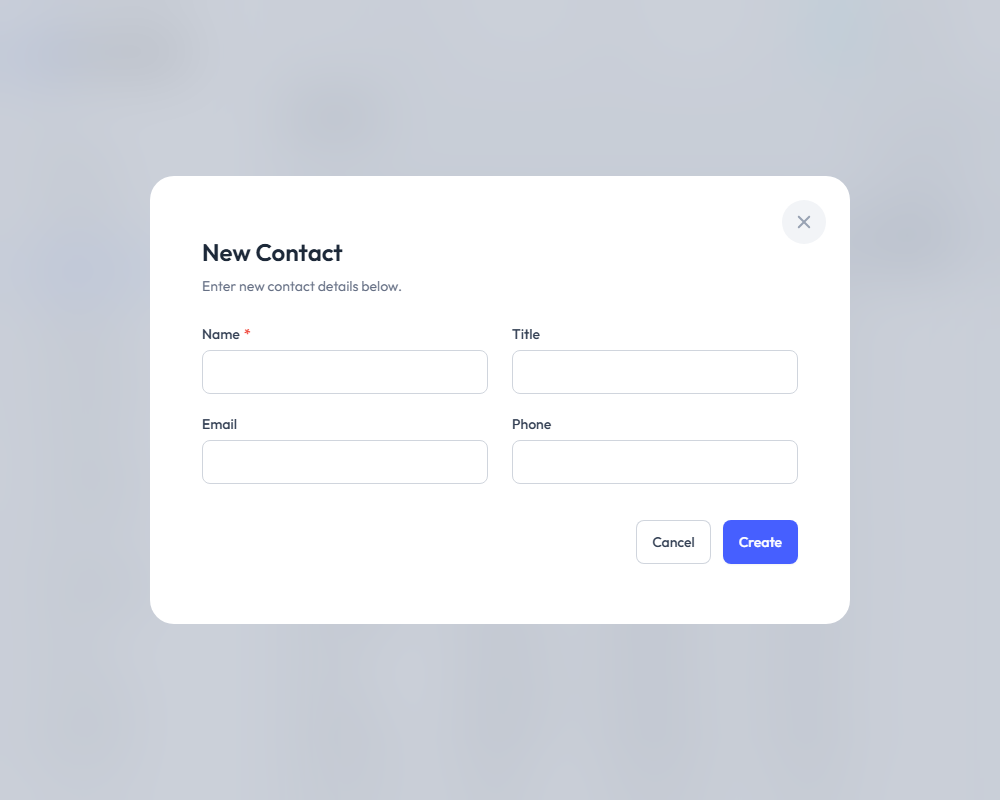
| Field | Required | Description |
|---|---|---|
| Name | Yes | Full name of the contact |
| Title | Yes | Job title (e.g., "Project Manager") |
| Yes | Email address | |
| Phone | Yes | Phone number |
- Click Save to create the contact
Contact Detail View
Click on a contact name to view full details:
- All contact information
- Edit and delete options
Linking Contacts to Clients
Contacts can be associated with multiple clients:
- Navigate to a Client detail view
- In the Contacts section, click Add Contact
- Select the contact from the dropdown
- The contact is now linked to that client
Alternatively, create a new contact directly from the client:
- In the client's Contacts section, click Create New
- Fill in the contact details
- The contact is automatically linked
Unlinking vs. Deleting
- Unlinking - Removes the association between a contact and client, but keeps the contact in the system
- Deleting - Permanently removes the contact and all its associations
Addresses
Addresses are reusable location records that can be linked to clients.
Addresses List
Navigate to Addresses from the sidebar.
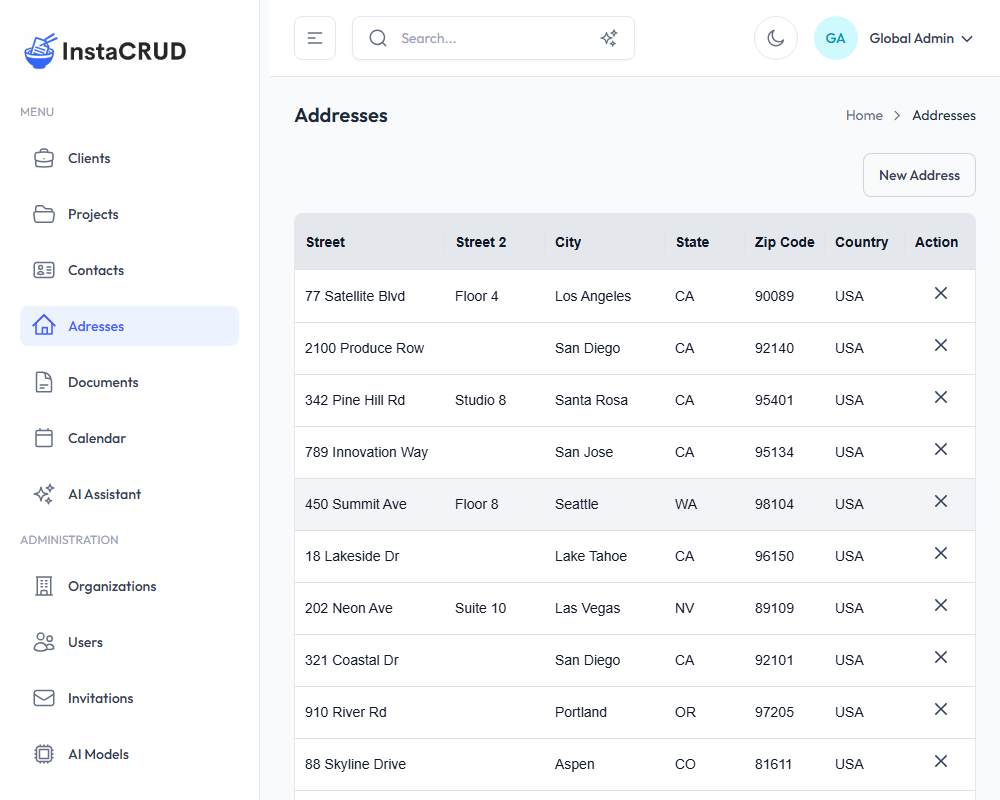
The list displays:
- Street - Primary street address
- City - City name
- State - State or province
- Zip Code - Postal code
- Country - Country name
- Actions - Edit and delete options
Creating a New Address
- Click the New Address button
- Fill in the address details:
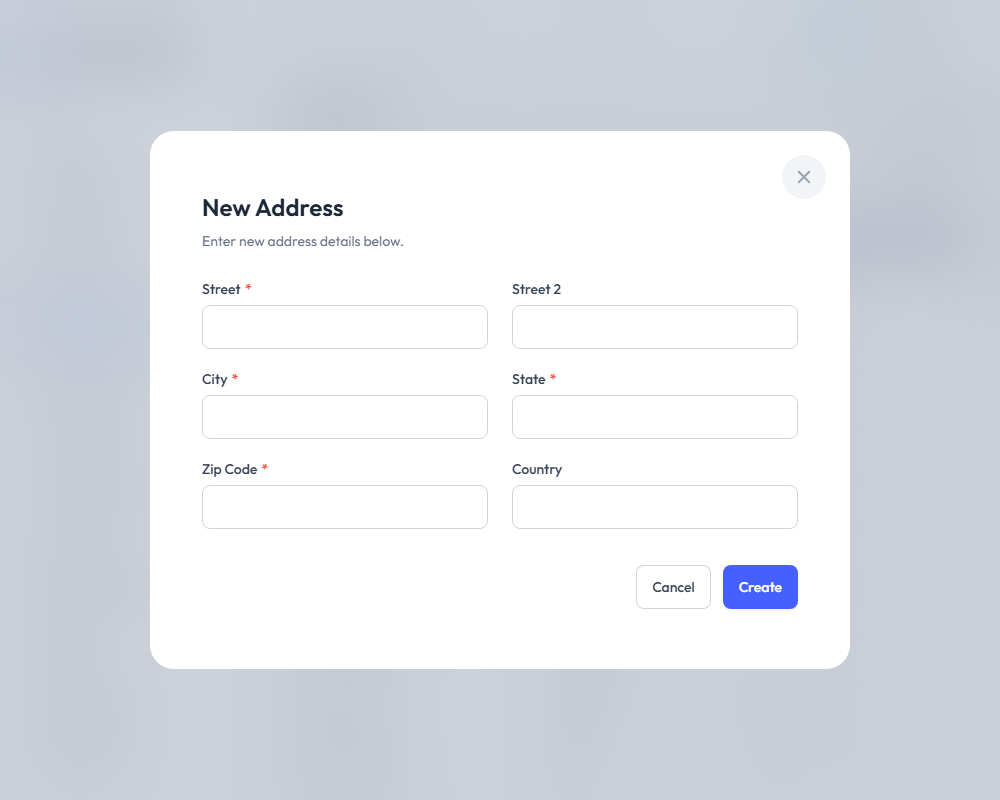
| Field | Required | Description |
|---|---|---|
| Street | Yes | Primary street address |
| Street 2 | No | Suite, unit, or additional info |
| City | Yes | City name |
| State | Yes | State or province |
| Zip Code | Yes | Postal/ZIP code |
| Country | Yes | Country name |
- Click Save to create the address
Address Detail View
Click on an address street name to view full details:
- Complete address information
- Edit and delete options
Linking Addresses to Clients
Addresses work similarly to contacts:
- Navigate to a Client detail view
- In the Addresses section, click Add Address
- Select the address from the dropdown
- The address is now linked to that client
You can also create a new address directly from the client detail view.
Common Use Cases
Multiple Office Locations
- Create one address per location
- Link all locations to the same client
Shared Addresses
- If multiple clients share an office building
- Create one address and link it to multiple clients
Client Headquarters vs. Project Sites
- Keep separate addresses for different purposes
- Link appropriate addresses to each client
Best Practices
Contacts
- Use complete names - Include first and last name
- Keep titles current - Update when roles change
- Use work email/phone - For business communications
- Avoid duplicates - Search before creating new contacts
Addresses
- Be consistent with formatting - Use the same format for all addresses
- Include suite/unit numbers - Use the Street 2 field
- Use full country names - Avoid abbreviations for clarity
- Update when clients move - Keep addresses current
Searching for Contacts and Addresses
Use the global search in the header to find contacts and addresses:
- Click the search bar or press
Ctrl+K/Cmd+K - Type the name, email, street, or city
- Matching contacts and addresses appear in results
- Click a result to navigate directly to it
The semantic search feature can also find related records based on context.