AI Assistant
The AI Assistant provides powerful AI capabilities including conversational chat and image generation. It integrates with various AI models to help you with tasks, answer questions, and create images.
Accessing the AI Assistant
Navigate to AI Assistant from the sidebar to open the chat interface.
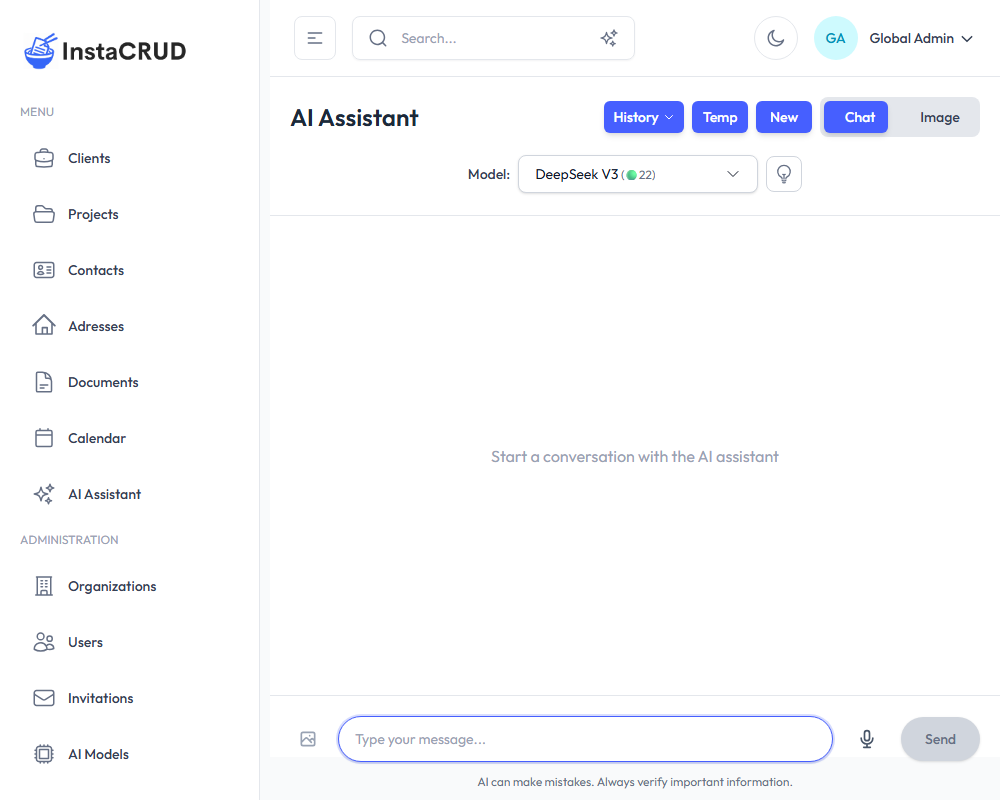
Chat Mode
Chat mode is the default interface for conversational AI interactions.
Starting a Conversation
- Navigate to the AI Assistant
- Type your message in the input field at the bottom
- Press Enter or click the send button
- The AI will respond with helpful information
Conversation Features
Message History
- Your conversations are automatically saved
- Scroll up to view previous messages
- Use the conversation dropdown to switch between conversations
Model Selection
- Select different AI models from the dropdown
- Available models depend on your organization's tier
- Different models have different capabilities and costs
Image Attachments
- Click the attachment button to add images
- The AI can analyze and discuss uploaded images
- Preview attached images before sending
Managing Conversations
Create New Conversation
- Click the New button to start a fresh conversation
- Each conversation gets a unique ID
Switch Conversations
- Use the conversation dropdown to see your history
- Click on a conversation to load it
Delete Conversations
- Delete individual conversations from the dropdown menu
- Use Delete All to clear your entire history
Temp Mode
- Toggle temp mode to prevent conversation saving
- Useful for sensitive or one-time queries
Image Generation Mode
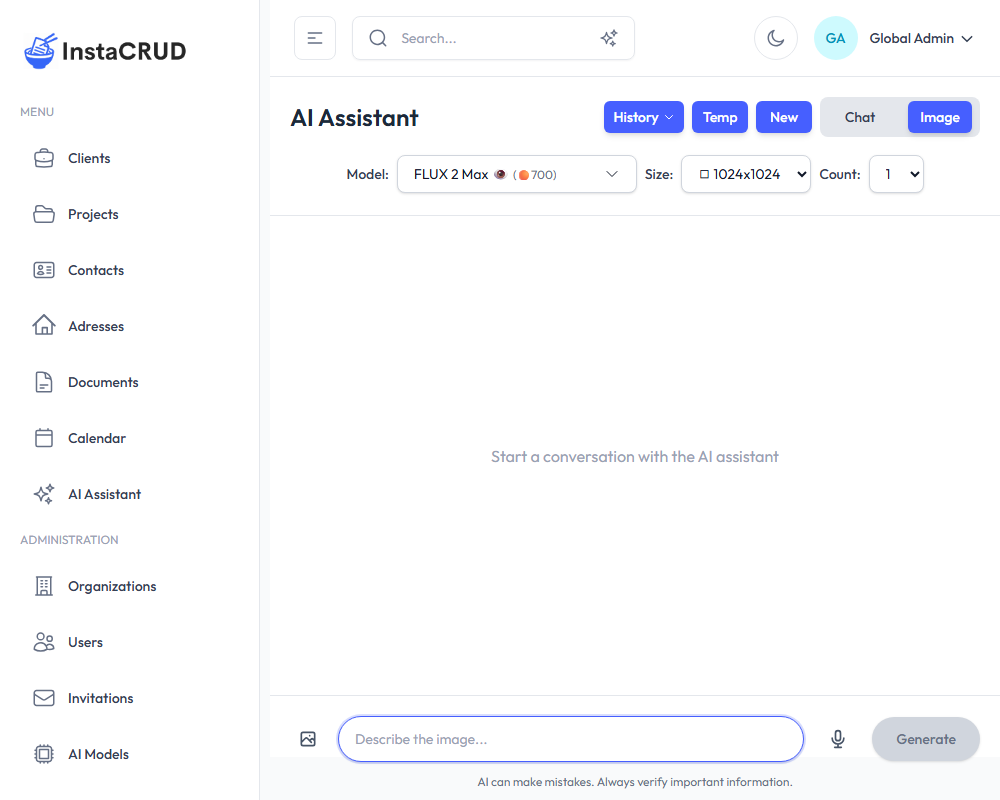
Switch to image generation mode to create AI-generated images.
Generating Images
- Click the mode toggle to switch to Image Generation
- Enter a detailed description of the image you want
- Configure generation options:
- Resolution - Select image dimensions
- Quality - Choose standard or high quality
- Count - Number of images to generate
- Click Generate
- View generated images in the chat
Image Generation Options
| Option | Description |
|---|---|
| Resolution | Choose from multiple size options (e.g., 1024x1024) |
| Quality | Standard or HD quality |
| Image Count | Generate 1-4 images at once |
Viewing Generated Images
- Generated images appear in the conversation
- Click on an image to view it in a larger modal
- Right-click to save or copy images
Reasoning Mode
Some AI models support extended thinking capabilities.
Using Reasoning Mode
- Toggle the Reasoning option (if available)
- Ask complex questions requiring analysis
- The AI will show its reasoning process
- View detailed reasoning in a modal
When to Use Reasoning
- Complex analytical problems
- Multi-step calculations
- Decisions requiring careful consideration
- Technical or logical reasoning tasks
Advanced Features
Streaming Responses
- AI responses stream in real-time
- Watch text appear as it's generated
- Stop button available to halt generation
Copy to Input
- Click the copy button on AI responses
- The response is copied to your input field
- Useful for refining or continuing prompts
Resync Data
- Click the Resync button to refresh conversation data
- Useful if conversations seem out of sync
Error Handling
If the AI encounters an error:
- An error message will display
- Click Retry to regenerate the response
- Or modify your prompt and try again
AI Usage and Limits
Your organization has an AI usage quota based on your subscription tier.
Checking Usage
- View current usage on the Profile page
- The AI Usage card shows:
- Current usage count
- Total limit
- Percentage used
- Reset date
Usage Tips
- Complex queries may use more credits
- Image generation typically uses more credits than chat
- Check usage regularly to avoid hitting limits
See Profile & AI Usage for more details on monitoring your quota.
Running AI locally with Ollama
All AI features work with locally hosted models via Ollama, giving you a fully private assistant with no cloud calls and no per-token costs. See AI Assistant with Ollama for setup instructions and the list of pre-configured models.
Best Practices
Effective Prompting
- Be specific - Provide clear, detailed instructions
- Give context - Explain what you're trying to achieve
- Use examples - Show the AI what you're looking for
- Iterate - Refine your prompts based on responses
Image Generation Tips
- Describe clearly - Include style, subject, colors, mood
- Be detailed - "A sunset over mountains" vs "A vibrant orange and pink sunset over snow-capped mountains, photorealistic style"
- Specify style - Mention art styles like "oil painting", "digital art", "photorealistic"
- Include composition - Describe framing, perspective, lighting
Conversation Management
- Start new conversations for different topics
- Delete old conversations to keep things organized
- Use temp mode for sensitive queries
- Save important responses by copying them
Troubleshooting
AI Not Responding
- Check your internet connection
- Try refreshing the page
- Start a new conversation
- Check if you've reached your usage limit
Image Generation Failed
- Simplify your prompt
- Try a different resolution
- Check your usage quota
- Contact support if issues persist
Conversation Not Loading
- Click the Resync button
- Refresh the page
- Try selecting a different conversation
- Start a new conversation if needed