AI Models & Tiers
AI Models and Tiers allow administrators to configure AI capabilities and define subscription levels for organizations. These features are only available to Admin users.
AI Models
AI Models represent the configured AI services available in the system. Each model connects to an AI provider and has specific capabilities and costs.
AI Models List
Navigate to AI Models from the Administration menu.
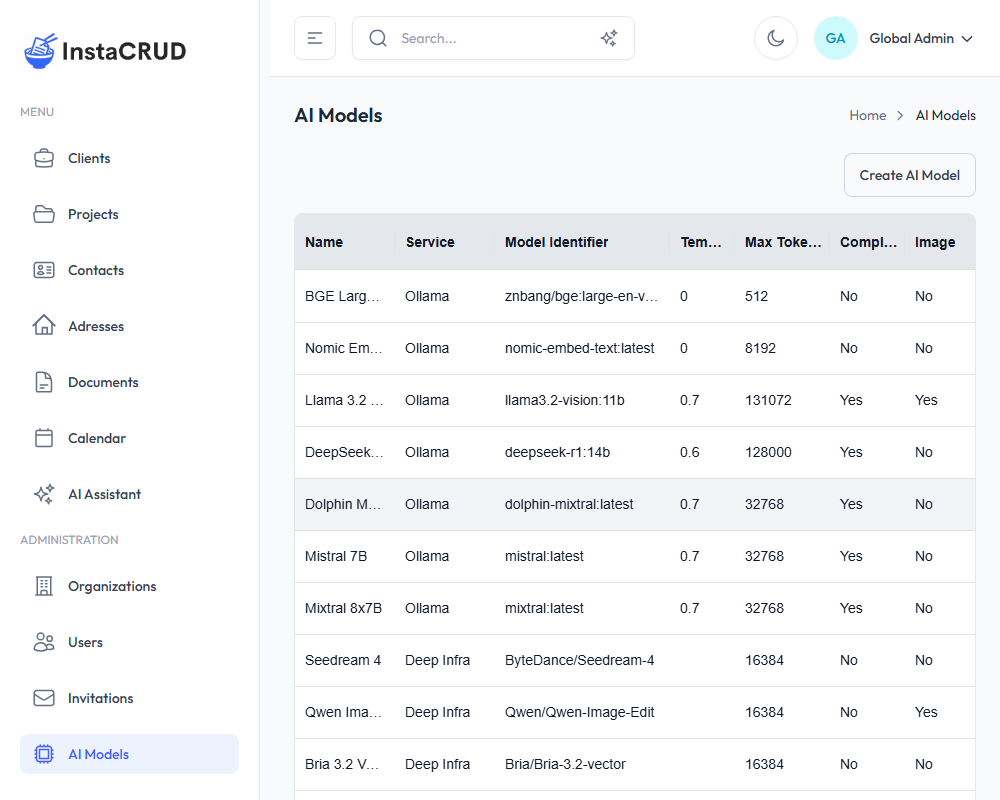
The list displays:
- Name - Model display name
- Service Provider - The AI service (e.g., OpenAI)
- Model Identifier - The API model ID
- Capabilities - Supported features (icons)
- Enabled - Active/inactive status
- Actions - Edit and delete options
Creating an AI Model
- Click the Create AI Model button
- Fill in the model configuration:
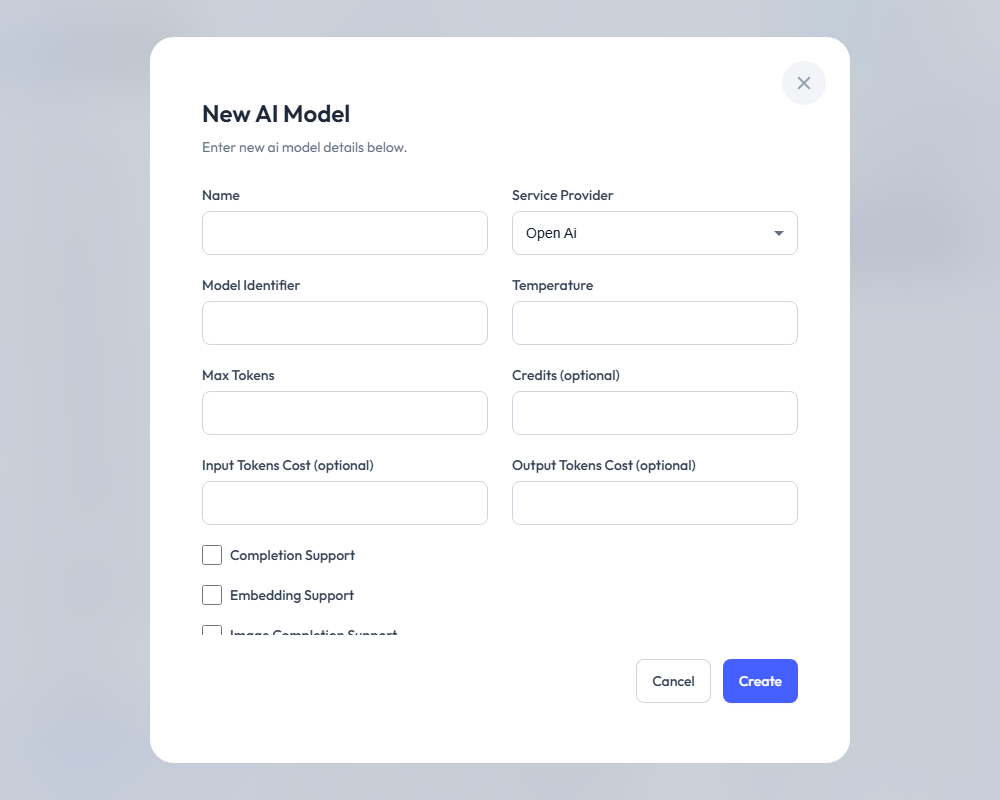
Basic Settings
| Field | Required | Description |
|---|---|---|
| Name | Yes | Display name for the model |
| Service Provider | Yes | AI provider (OpenAI, etc.) |
| Model Identifier | Yes | API model ID (e.g., "gpt-4") |
| Enabled | No | Whether the model is active |
| Rank | No | Sort order in selection lists |
Model Parameters
| Field | Required | Description |
|---|---|---|
| Temperature | No | Randomness setting (0.0-1.0) |
| Max Tokens | No | Maximum response length |
Cost Tracking
| Field | Required | Description |
|---|---|---|
| Credits | No | Credits consumed per use |
| Input Tokens Cost | No | Cost per input token |
| Output Tokens Cost | No | Cost per output token |
Capabilities
| Checkbox | Description |
|---|---|
| Completion Support | Can generate text responses |
| Embedding Support | Can create embeddings for semantic search |
| Image Completion Support | Can analyze images |
| Image Generation Support | Can generate images |
- Click Save to create the model
Model Configuration Guide
For Chat Models (GPT-4, Claude, etc.)
Name: GPT-4 Turbo
Service Provider: OPEN_AI
Model Identifier: gpt-4-turbo
Temperature: 0.7
Max Tokens: 4096
Completion Support: Yes
Image Completion Support: Yes (if vision capable)
Enabled: Yes
For Embedding Models
Name: Text Embedding 3
Service Provider: OPEN_AI
Model Identifier: text-embedding-3-small
Embedding Support: Yes
Enabled: Yes
For Image Generation Models
Name: DALL-E 3
Service Provider: OPEN_AI
Model Identifier: dall-e-3
Image Generation Support: Yes
Enabled: Yes
Editing AI Models
- Click on a model in the list
- Click Edit
- Modify settings as needed
- Click Save
Disabling vs. Deleting
- Disable - Uncheck "Enabled" to temporarily hide from users
- Delete - Permanently remove the model configuration
Tiers
Tiers define subscription levels that control features and usage limits for organizations.
Tiers List
Navigate to Tiers from the Administration menu.
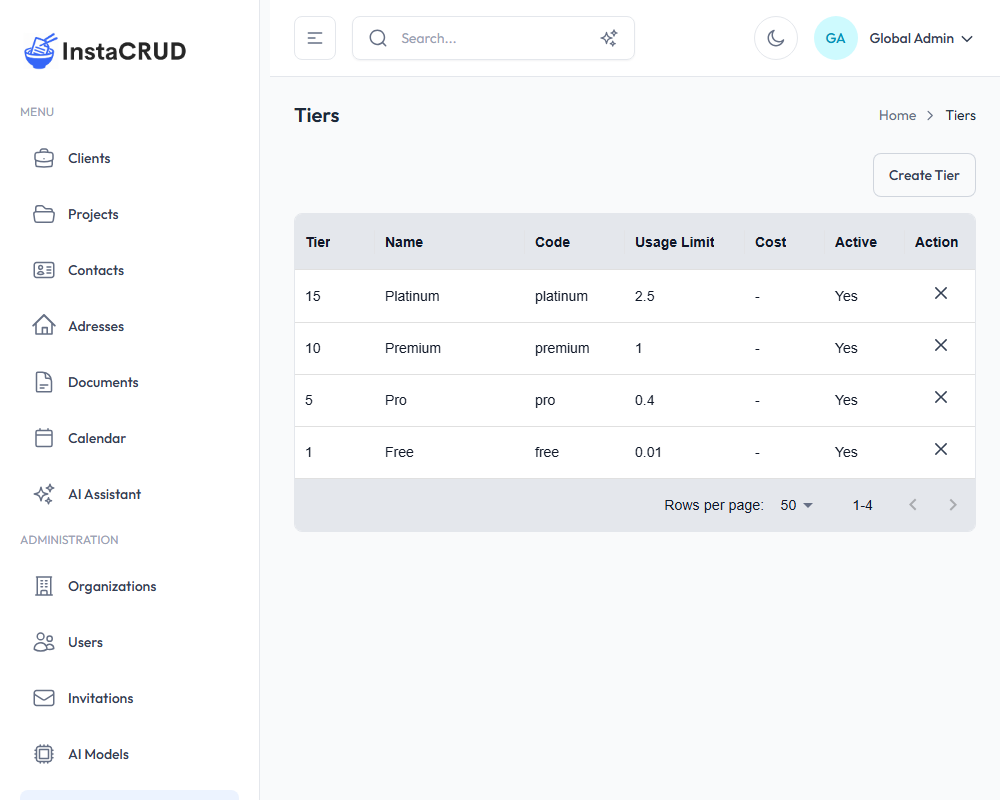
The list displays:
- Tier - Tier level number
- Name - Display name
- Code - Unique identifier
- Usage Limit - AI usage quota
- Cost - Subscription cost
- Active - Whether tier is available
- Actions - Edit and delete options
Creating a Tier
- Click the Create Tier button
- Fill in the tier details:
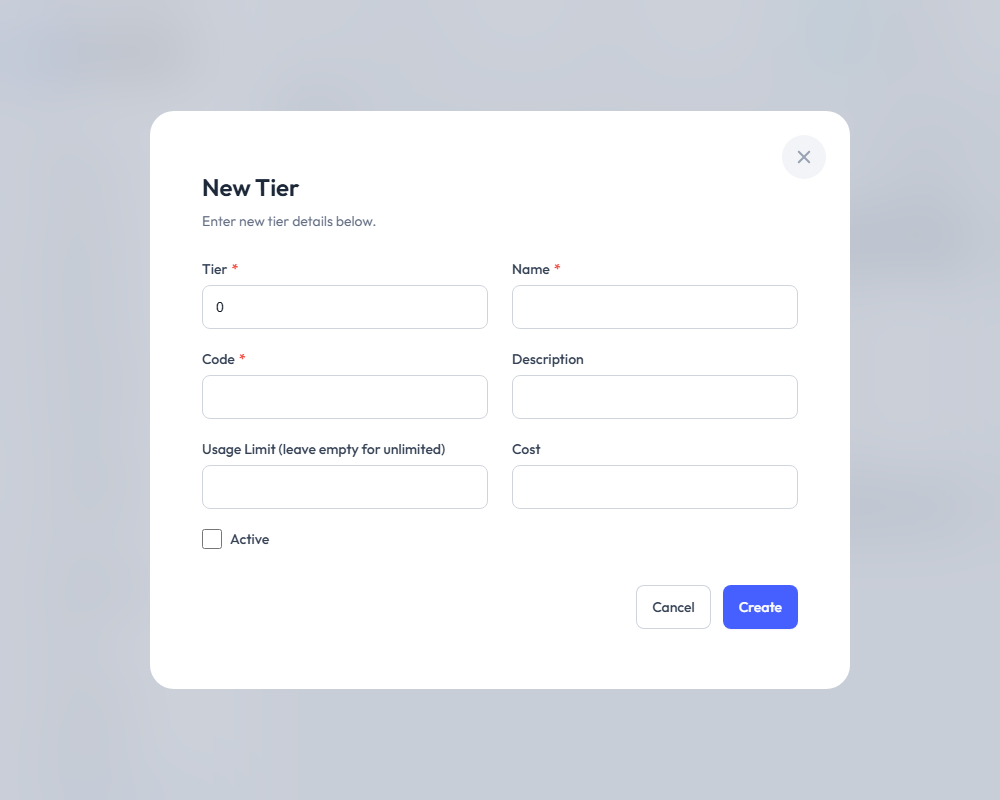
| Field | Required | Description |
|---|---|---|
| Tier | Yes | Tier level number (for ordering) |
| Name | Yes | Display name (e.g., "Premium") |
| Code | Yes | Unique code (e.g., "premium") |
| Description | No | What this tier includes |
| Usage Limit | No | AI usage quota (leave empty for unlimited) |
| Cost | No | Monthly/subscription cost |
| Active | No | Whether tier is available for assignment |
- Click Save to create the tier
Tier Configuration Examples
Free Tier
Tier: 1
Name: Free
Code: free
Usage Limit: 100
Cost: 0
Active: Yes
Description: Limited access for evaluation
Standard Tier
Tier: 2
Name: Standard
Code: standard
Usage Limit: 1000
Cost: 29
Active: Yes
Description: For small teams
Premium Tier
Tier: 3
Name: Premium
Code: premium
Usage Limit: 10000
Cost: 99
Active: Yes
Description: For growing businesses
Enterprise Tier
Tier: 4
Name: Enterprise
Code: enterprise
Usage Limit: (empty - unlimited)
Cost: 299
Active: Yes
Description: Unlimited usage for large organizations
Usage Limits
The Usage Limit field controls how many AI credits an organization can use:
- Set a number - Limits usage to that amount
- Leave empty - Unlimited usage (no cap)
Usage is tracked per organization and resets periodically (see Profile & AI Usage).
Assigning Tiers to Organizations
- Navigate to Organizations
- Edit the organization
- Select a tier from the dropdown
- Save the changes
The organization's AI usage will now be tracked against the tier's limit.
Editing Tiers
- Click on a tier in the list
- Click Edit
- Modify settings as needed
- Click Save
Changing a tier's usage limit affects all organizations currently assigned to that tier.
Deactivating vs. Deleting Tiers
- Deactivate - Uncheck "Active" to prevent new assignments
- Delete - Permanently remove (ensure no organizations use it first)
Managing AI Costs
Tracking Model Costs
- Configure input/output token costs for each model
- Review usage through the Profile page
- Monitor organization-level usage
Optimizing Usage
- Choose appropriate models - Use smaller models for simple tasks
- Set reasonable limits - Prevent unexpected overages
- Monitor regularly - Review usage patterns
- Adjust tiers - Upgrade organizations as needed
Best Practices
AI Models
- Enable only models you've tested
- Set appropriate temperature for your use case
- Configure cost tracking for budgeting
- Use ranking to prioritize preferred models
Tiers
- Create clear tier differentiation
- Use meaningful names and codes
- Document what each tier includes
- Review tier assignments regularly
Troubleshooting
Model Not Appearing in AI Assistant
- Check that "Enabled" is checked
- Verify the organization's tier allows the model
- Check model capabilities match intended use
Usage Limit Not Working
- Verify tier is assigned to organization
- Check usage limit is set (not empty)
- Confirm usage tracking is active
Cost Tracking Issues
- Ensure cost fields are filled for models
- Verify the correct service provider is selected
- Check model identifier matches the API